微信扫一扫
微信扫一扫ClickHouse

Work with ClickHouse from chat — inspect databases, review schemas, and run read-only SQL analytics queries via the ClickHouse HTTP API with API key authentication.
This skill uses ClawLink for hosted connection flows and credentials so you do not need to configure ClickHouse API access yourself.
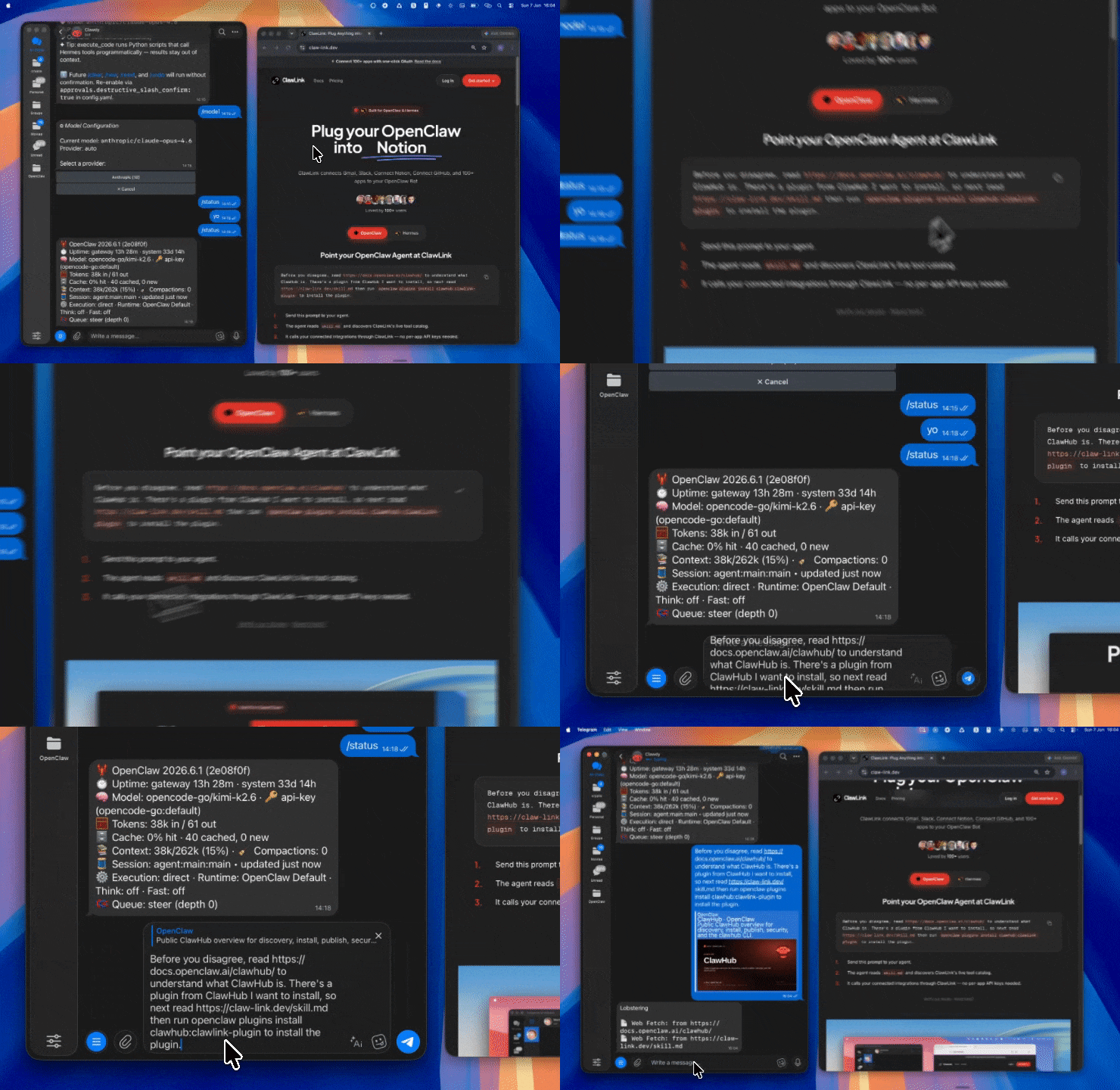
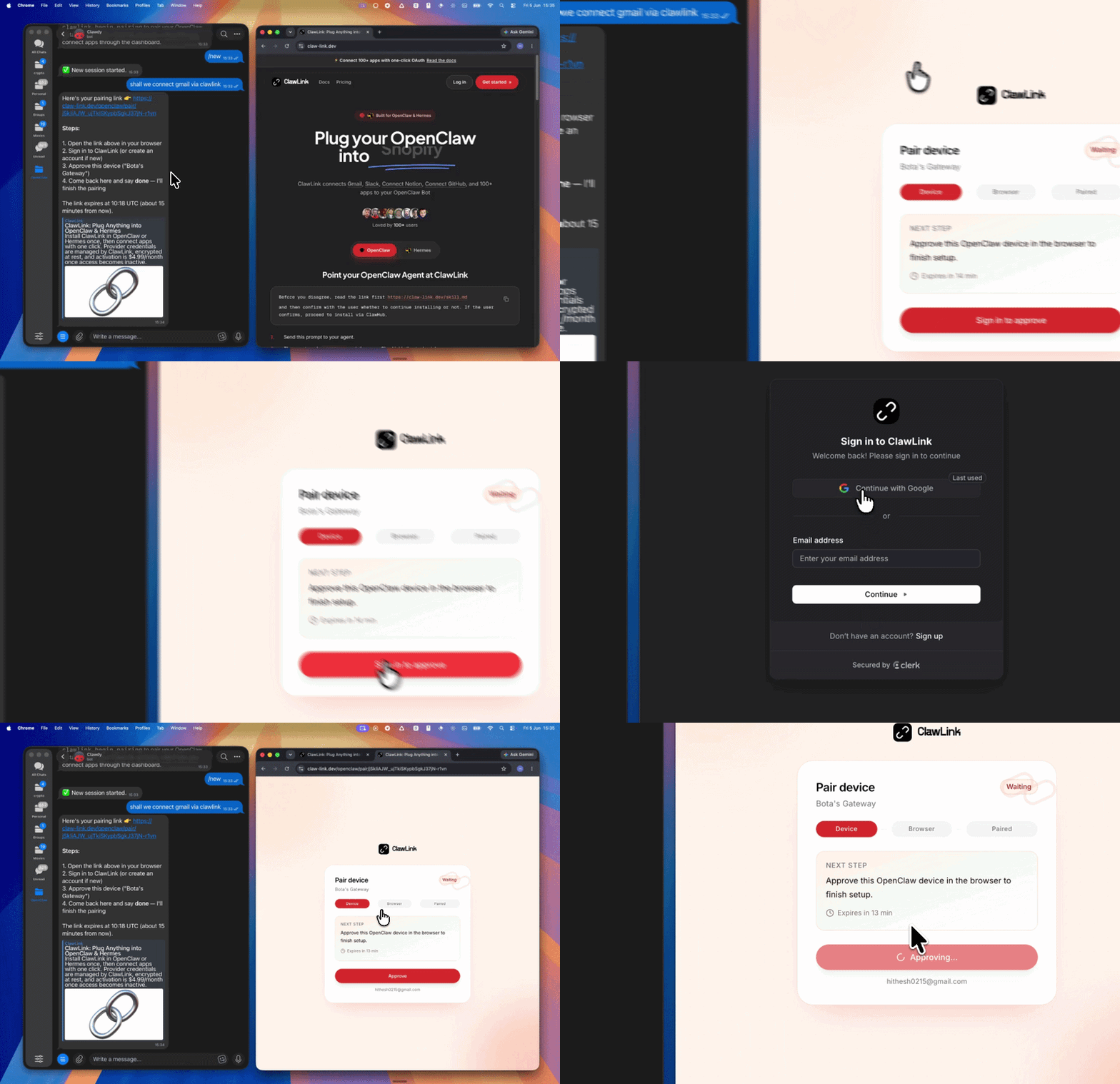
Setup in 3 Steps
| Step 1: Install | Step 2: Pair Account | Step 3: Connect ClickHouse |
|:---:|:---:|:---:|
|  |
|  | App-specific connection GIF coming soon |
| Run the install command in OpenClaw | Sign in and approve the device | Open the dashboard and connect ClickHouse |
| App-specific connection GIF coming soon |
| Run the install command in OpenClaw | Sign in and approve the device | Open the dashboard and connect ClickHouse |
How It Works
┌─────────────────┐     ┌──────────────┐     ┌──────────────────┐
│   OpenClaw      │────▶│   ClawLink   │────▶│ ClickHouse HTTP API│
│   (User Chat)   │     │   (API Key)  │     │ (SQL Queries)    │
└─────────────────┘     └──────────────┘     └──────────────────┘
         │                       │                       │
         │  1. Install Plugin    │                       │
         │  2. Pair Device       │                       │
         │  3. Connect ClickHouse│                       │
         │                       │  4. Secure Key │
         │                       │  5. Proxy Requests    │
         │                       │                       │
         ▼                       ▼                       ▼
   ┌──────────┐           ┌──────────┐           ┌──────────┐
   │  SKILL   │           │ Dashboard│           │ ClickHouse│
   │  File    │           │ Auth     │           │ Queries  │
   └──────────┘           └──────────┘           └──────────┘
Install
Install the verified ClawLink plugin from ClawHub. After the user confirms, complete the full setup so ClawLink tools are visible in the next OpenClaw chat.
openclaw plugins install clawhub:clawlink-plugin
openclaw config set tools.alsoAllow '["clawlink-plugin"]' --strict-json
openclaw gateway restart
Then tell the user: "OpenClaw has been restarted. Send /new as a standalone message to start a fresh chat, then ask for ClickHouse again."
Quick Start
# List databases
clawlink_call_tool --tool "clickhouse_list_databases" --params '{}'

# List tables in a database
clawlink_call_tool --tool "clickhouse_list_tables" --params '{"database": "default"}'

# Get database schema overview
clawlink_call_tool --tool "clickhouse_get_database_schema" --params '{"database": "default"}'
Authentication
All ClickHouse tool calls are authenticated automatically by ClawLink using the user's connected ClickHouse account.
No credentials are required in chat. ClawLink stores the connection details securely and injects them into every ClickHouse request on the user's behalf.
Getting Connected
- Install the ClawLink plugin (see Install above).
- Pair the plugin with
clawlink_begin_pairingif it is not configured yet. - Open https://claw-link.dev/dashboard?add=clickhouse and connect ClickHouse.
- Call
clawlink_list_integrationsto verify the connection is active.
Connection Management
List Connections
clawlink_list_integrations
Response: Returns all connected integrations. Look for clickhouse in the list.
Verify Connection
clawlink_list_tools --integration clickhouse
Response: Returns the live tool catalog for ClickHouse.
Reconnect
If ClickHouse tools are missing or the connection shows an error:
- Direct the user to https://claw-link.dev/dashboard?add=clickhouse
- After they confirm, call
clawlink_list_integrationsto verify - Then call
clawlink_list_tools --integration clickhouse
Security & Permissions
- ClickHouse queries are read-only by design in ClawLink — no INSERT, ALTER, DROP, or TRUNCATE operations are exposed.
- Query operations require user confirmation for large result sets or expensive queries (full table scans, GROUP BY without limits).
- Avoid running queries that could lock tables or consume excessive resources.
Tool Reference
Schema Discovery
| Tool | Description | Mode |
|------|-------------|------|
| clickhouse_list_databases | List all databases in the ClickHouse instance | Read |
| clickhouse_list_tables | List tables in a database with engine, size, and row count | Read |
| clickhouse_get_database_schema | Get full schema overview including all tables and columns | Read |
| clickhouse_get_table_schema | Get detailed schema for a specific table including columns and types | Read |
Query Execution
| Tool | Description | Mode |
|------|-------------|------|
| clickhouse_execute_query | Execute a read-only SQL query and return results | Read |
Interface
| Tool | Description | Mode |
|------|-------------|------|
| clickhouse_get_play_interface | Get the ClickHouse Play web interface URL for interactive queries | Read |
Code Examples
List all databases
clawlink_call_tool --tool "clickhouse_list_databases" \
  --params '{}'
Get database schema
clawlink_call_tool --tool "clickhouse_get_database_schema" \
  --params '{
    "database": "analytics"
  }'
Execute a simple query
clawlink_call_tool --tool "clickhouse_execute_query" \
  --params '{
    "query": "SELECT * FROM events WHERE date >= today() - 7 LIMIT 100"
  }'
Get table schema
clawlink_call_tool --tool "clickhouse_get_table_schema" \
  --params '{
    "database": "analytics",
    "table": "events"
  }'
Discovery Workflow
- Call
clawlink_list_integrationsto confirm ClickHouse is connected. - Call
clawlink_list_tools --integration clickhouseto see the live catalog. - Treat the returned list as the source of truth. Do not guess or assume what tools exist.
- If the user describes a capability but the exact tool is unclear, call
clawlink_search_toolswith a short query and integrationclickhouse. - If no ClickHouse tools appear, direct the user to https://claw-link.dev/dashboard?add=clickhouse.
Execution Workflow
┌─────────────────────────────────────────────────────────────┐
│  SCHEMA DISCOVERY (Always first)                           │
│  list_databases → list_tables → get_table_schema          │
│                                                             │
│  Example: Discover tables → Understand schema → Then query   │
└─────────────────────────────────────────────────────────────┘
                              │
                              ▼
┌─────────────────────────────────────────────────────────────┐
│  QUERY EXECUTION (Read-only)                                │
│  describe → preview → confirm → execute                     │
│                                                             │
│  Example: Describe query → Preview results → User approves   │
│           → Execute read-only query                          │
└─────────────────────────────────────────────────────────────┘
- Always explore the schema first with
clickhouse_list_databasesandclickhouse_get_database_schemabefore running queries. - For unfamiliar tables, call
clickhouse_get_table_schemato understand column names and types. - Keep queries targeted with WHERE clauses and LIMIT — avoid full table scans when possible.
- For large or complex queries, confirm the expected result size with the user before executing.
- If the tool call fails, report the real error. Do not invent results.
Notes
- ClickHouse SQL syntax differs from standard SQL — use ClickHouse-specific functions and syntax.
- All queries are read-only — no data modification is possible through ClawLink tools.
- Use
LIMITto prevent accidentally large result sets. - Sample data can be included in table schema responses — use it to understand data types.
- The Play interface provides an interactive HTML UI with Monaco Editor for manual query writing.
Error Handling
| Status / Error | Meaning |
|----------------|---------|
| Tool not found | The tool name does not exist in the current catalog. Verify with clawlink_list_tools --integration clickhouse. |
| Missing connection | ClickHouse is not connected. Direct the user to https://claw-link.dev/dashboard?add=clickhouse. |
| SyntaxError | SQL syntax error in query. Check ClickHouse SQL syntax. |
| TableNotFound | Table or database does not exist. Verify names with schema tools first. |
| Query error | Query failed. Check query logic and table structure. |
Troubleshooting: Tools Not Visible
- Check that the ClawLink plugin is installed:
openclaw plugins list - If the plugin is installed but tools are missing, tell the user to send
/newas a standalone message to reload the catalog. - If a fresh chat does not help, run:
openclaw config set tools.alsoAllow '["clawlink-plugin"]' --strict-json openclaw gateway restart - After restart, tell the user to send
/newagain and retry.
Troubleshooting: Query Errors
- Always use schema tools first to verify table and column names.
- Verify the database name with
clickhouse_list_databases. - Use
LIMITto test queries with small result sets first.
Resources
- ClickHouse Documentation
- ClickHouse SQL Reference
- ClawLink: https://claw-link.dev/?utm_source=clawhub&utm_medium=referral&utm_content=clickhouse-analytics
- ClawLink Docs: https://docs.claw-link.dev/openclaw
- ClawLink Verification: https://claw-link.dev/verify
Related Skills
- Datadog — For Datadog observability and metrics
- Snowflake — For Snowflake data warehouse queries
- PostgreSQL — For PostgreSQL database operations
Powered by ClawLink — an integration hub for OpenClaw