微信扫一扫
微信扫一扫QuickBooks

Manage QuickBooks from chat — accounts, customers, invoices, payments, bills, expenses, and financial workflows via the QuickBooks Online API.
This skill uses ClawLink for hosted connection flows and credentials so you do not need to configure QuickBooks API access yourself.
Setup in 3 Steps
| Step 1: Install | Step 2: Pair Account | Step 3: Connect QuickBooks |
|:---:|:---:|:---:|
| 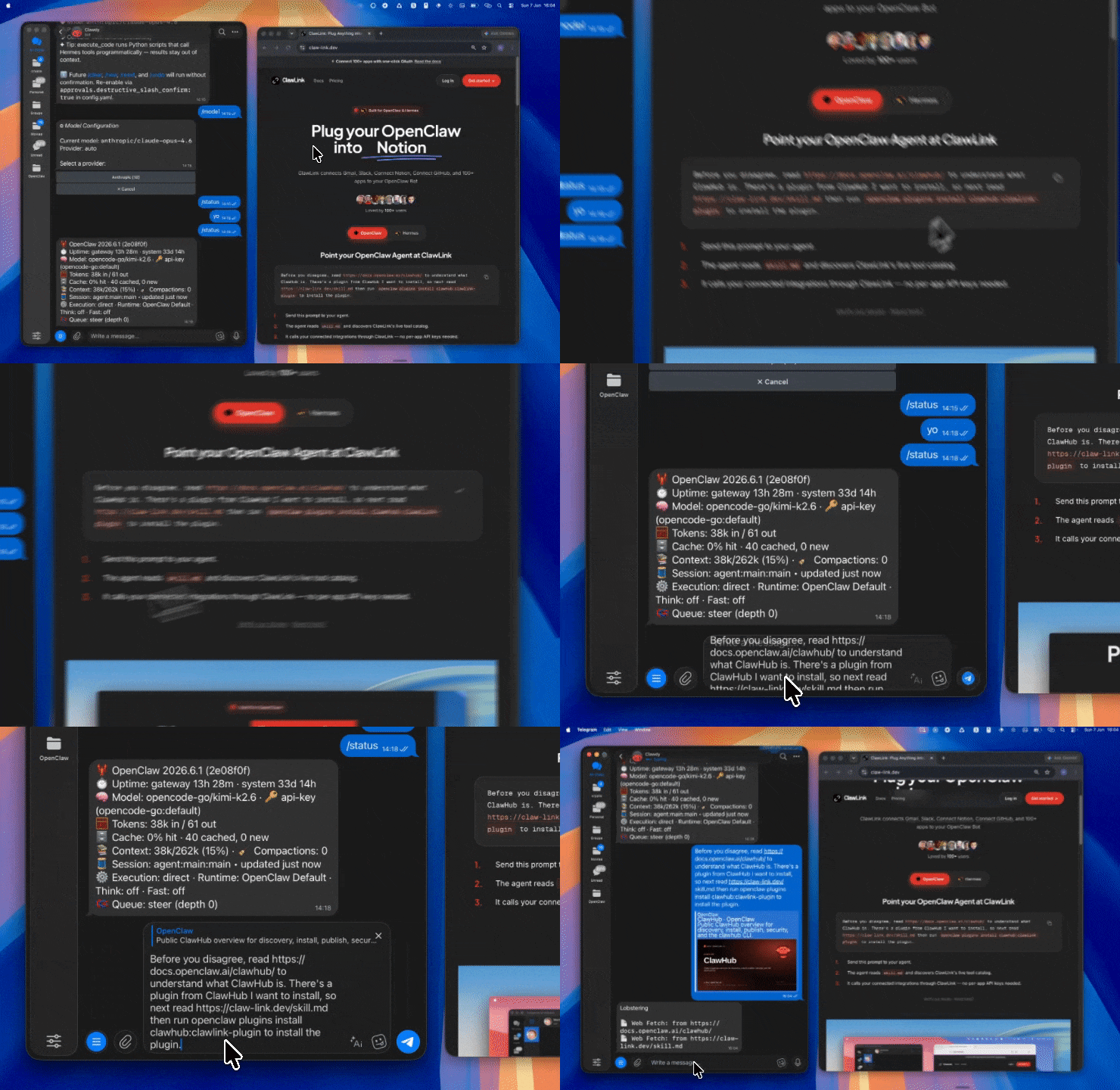 |
| 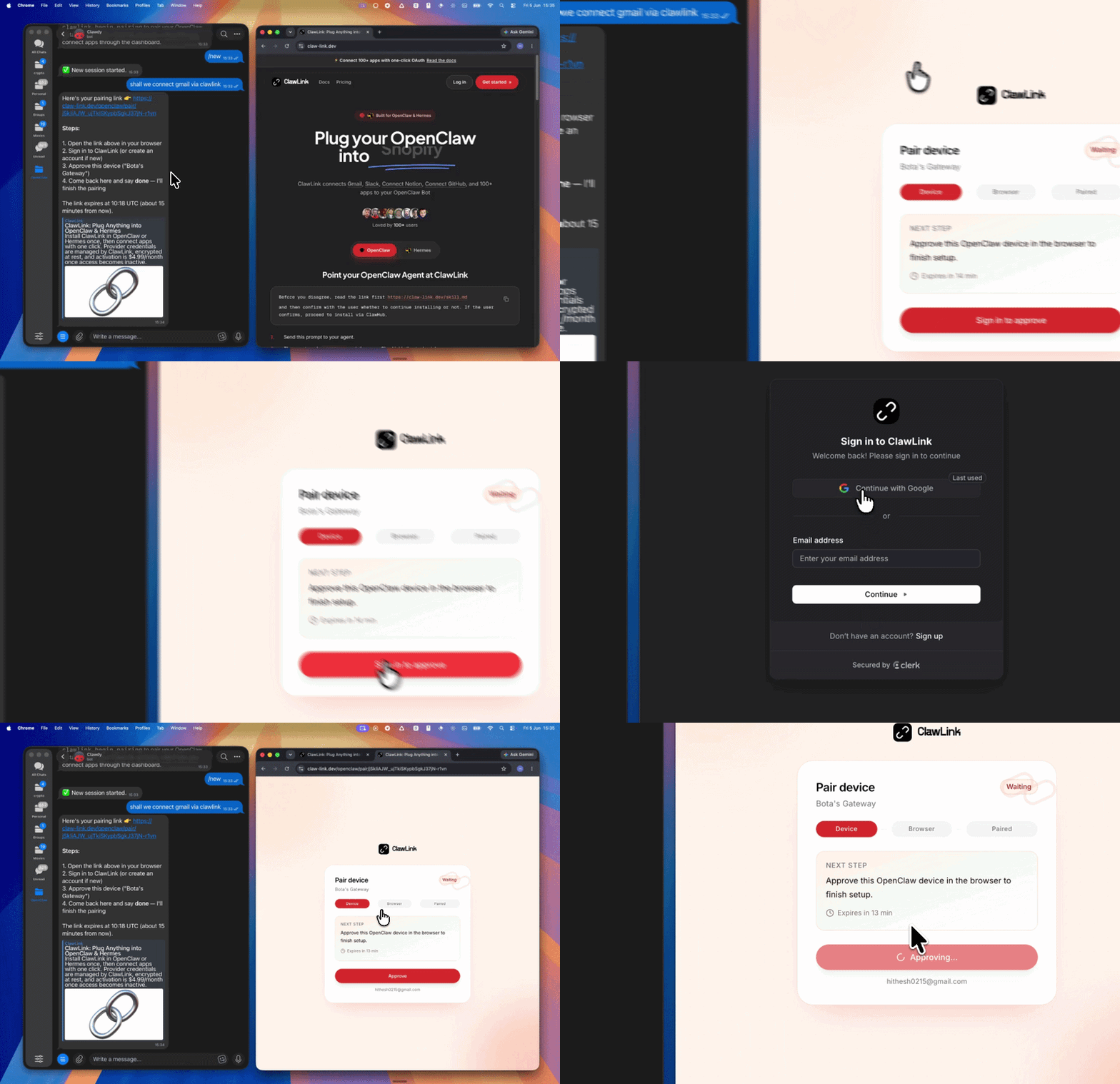 | App-specific connection GIF coming soon |
| Run the install command in OpenClaw | Sign in and approve the device | Open the dashboard and connect QuickBooks |
| App-specific connection GIF coming soon |
| Run the install command in OpenClaw | Sign in and approve the device | Open the dashboard and connect QuickBooks |
How It Works
┌─────────────────┐     ┌──────────────┐     ┌──────────────────┐
│   OpenClaw      │────▶│   ClawLink   │────▶│ QuickBooks       │
│   (User Chat)   │     │   (OAuth)    │     │ (Online API)     │
└─────────────────┘     └──────────────┘     └──────────────────┘
          │                       │                       │
          │  1. Install Plugin    │                       │
          │  2. Pair Device      │                       │
          │  3. Connect QB       │                       │
          │                      │  4. Secure Token       │
          │                      │  5. Proxy Requests     │
          │                      │                       │
          ▼                      ▼                       ▼
    ┌──────────┐          ┌──────────┐          ┌──────────┐
    │  SKILL   │          │ Dashboard│          │ QuickBooks│
    │  File    │          │ Auth     │          │ Company │
    └──────────┘          └──────────┘          └──────────┘
Install
Install the verified ClawLink plugin from ClawHub. After the user confirms, complete the full setup so ClawLink tools are visible in the next OpenClaw chat.
openclaw plugins install clawhub:clawlink-plugin
openclaw config set tools.alsoAllow '["clawlink-plugin"]' --strict-json
openclaw gateway restart
Then tell the user: "OpenClaw has been restarted. Send /new as a standalone message to start a fresh chat, then ask for QuickBooks again."
Quick Start
# List recent invoices
clawlink_call_tool --tool "quickbooks_list_invoices" --params '{"limit": 10}'

# Read a customer
clawlink_call_tool --tool "quickbooks_read_customer" --params '{"customer_id": "CUSTOMER_ID"}'

# Create an invoice
clawlink_call_tool --tool "quickbooks_create_invoice" --params '{"customer_id": "CUSTOMER_ID", "line_items": [{"amount": 100.00, "description": "Service rendered"}]}'
Authentication
All QuickBooks tool calls are authenticated automatically by ClawLink using the user's connected QuickBooks account.
No API key is required in chat. ClawLink stores the OAuth token securely and injects it into every QuickBooks Online API request on the user's behalf.
Getting Connected
- Install the ClawLink plugin (see Install above).
- Pair the plugin with
clawlink_begin_pairingif it is not configured yet. - Open https://claw-link.dev/dashboard?add=quickbooks and connect QuickBooks.
- Call
clawlink_list_integrationsto verify the connection is active.
Connection Management
List Connections
clawlink_list_integrations
Response: Returns all connected integrations. Look for quickbooks in the list.
Verify Connection
clawlink_list_tools --integration quickbooks
Response: Returns the live tool catalog for QuickBooks.
Reconnect
If QuickBooks tools are missing or the connection shows an error:
- Direct the user to https://claw-link.dev/dashboard?add=quickbooks
- After they confirm, call
clawlink_list_integrationsto verify - Then call
clawlink_list_tools --integration quickbooks
Security & Permissions
- Access is scoped to the QuickBooks company data accessible via the connected OAuth app.
- All write operations require explicit user confirmation. Before executing any create, update, or delete call, confirm the target resource and intended effect with the user.
- Destructive actions (delete customer, void invoice, reverse payment) are marked as high-impact and must be confirmed.
- Financial data should be reviewed carefully before writes — confirm amounts, accounts, and dates.
Tool Reference
Customers & Contacts
| Tool | Description | Mode |
|------|-------------|------|
| quickbooks_read_customer | Read a customer by ID | Read |
| quickbooks_create_customer | Create a new customer | Write |
| quickbooks_customer_balance_report | Generate a customer balance report | Read |
| quickbooks_customer_balance_detail | Generate a customer balance detail report | Read |
Invoices & Sales
| Tool | Description | Mode |
|------|-------------|------|
| quickbooks_list_invoices | List invoices with pagination | Read |
| quickbooks_read_invoice | Read an invoice by ID | Read |
| quickbooks_create_invoice | Create a new invoice | Write |
| quickbooks_update_full_invoice | Fully replace an invoice | Write |
| quickbooks_update_sparse_invoice | Update specific invoice fields | Write |
| quickbooks_get_invoice_pdf | Download invoice as PDF | Read |
| quickbooks_create_sales_receipt | Create a sales receipt | Write |
| quickbooks_get_sales_receipt | Read a sales receipt | Read |
| quickbooks_get_salesreceipt_pdf | Download sales receipt as PDF | Read |
| quickbooks_create_credit_memo | Create a credit memo | Write |
| quickbooks_get_credit_memo | Read a credit memo | Read |
| quickbooks_get_credit_memo_pdf | Download credit memo as PDF | Read |
| quickbooks_send_credit_memo | Email a credit memo | Write |
| quickbooks_create_estimate | Create an estimate/quote | Write |
| quickbooks_get_estimate | Read an estimate | Read |
| quickbooks_get_estimate_pdf | Download estimate as PDF | Read |
Payments & Settlements
| Tool | Description | Mode |
|------|-------------|------|
| quickbooks_create_payment | Record a customer payment | Write |
| quickbooks_get_payment | Read a payment by ID | Read |
| quickbooks_get_payment_pdf | Download payment as PDF | Read |
| quickbooks_create_echeck_payment | Process an eCheck payment | Write |
| quickbooks_create_bank_account | Add a bank account for ACH | Write |
| quickbooks_delete_bank_account | Remove a customer's bank account | Write |
| quickbooks_list_cards | List stored payment cards | Read |
| quickbooks_capture_charge | Capture an authorized charge | Write |
Bills & Purchasing
| Tool | Description | Mode |
|------|-------------|------|
| quickbooks_create_bill | Create a vendor bill | Write |
| quickbooks_get_bill | Read a bill by ID | Read |
| quickbooks_create_bill_payment | Record a bill payment | Write |
| quickbooks_get_bill_payment | Read a bill payment | Read |
| quickbooks_create_purchase_order | Create a purchase order | Write |
| quickbooks_get_purchase_order | Read a purchase order | Read |
| quickbooks_get_purchase_order_pdf | Download PO as PDF | Read |
| quickbooks_create_vendor_credit | Create a vendor credit | Write |
| quickbooks_get_vendor_credit | Read a vendor credit | Read |
Accounts & Ledger
| Tool | Description | Mode |
|------|-------------|------|
| quickbooks_read_account | Read an account by ID | Read |
| quickbooks_create_account | Create a new account | Write |
| quickbooks_query_account | Query accounts with SOQL | Read |
| quickbooks_create_deposit | Record a deposit | Write |
| quickbooks_get_deposit | Read a deposit | Read |
| quickbooks_create_journal_entry | Create a journal entry | Write |
| quickbooks_get_journal_entry | Read a journal entry | Read |
| quickbooks_get_transfer | Read a transfer | Read |
Employees & Time
| Tool | Description | Mode |
|------|-------------|------|
| quickbooks_create_employee | Create an employee | Write |
| quickbooks_read_employee | Read an employee | Read |
| quickbooks_create_time_activity | Log time activity | Write |
| quickbooks_get_time_activity | Read time activity | Read |
Vendors
| Tool | Description | Mode |
|------|-------------|------|
| quickbooks_read_vendor | Read a vendor by ID | Read |
| quickbooks_create_vendor | Create a new vendor | Write |
Reports
| Tool | Description | Mode |
|------|-------------|------|
| quickbooks_get_reports | Retrieve standard reports | Read |
| quickbooks_get_balance_sheet_report | Balance sheet report | Read |
| quickbooks_get_profit_and_loss_report | Profit & Loss report | Read |
| quickbooks_get_profit_and_loss_detail_report | Detailed P&L report | Read |
| quickbooks_get_aged_receivables_report | Aged receivables report | Read |
| quickbooks_get_general_ledger_report | General ledger report | Read |
| quickbooks_get_transaction_list_report | Transaction list report | Read |
| quickbooks_get_inventory_valuation_summary | Inventory valuation report | Read |
| quickbooks_get_report_customer_sales | Customer sales report | Read |
| quickbooks_get_report_item_sales | Item sales report | Read |
| quickbooks_get_report_trial_balance | Trial balance report | Read |
Company Settings
| Tool | Description | Mode |
|------|-------------|------|
| quickbooks_get_company_info | Read company information | Read |
| quickbooks_update_company_info | Update company details | Write |
| quickbooks_get_preferences | Read company preferences | Read |
| quickbooks_update_preferences | Update preferences | Write |
| quickbooks_get_exchange_rate | Get currency exchange rate | Read |
Data Management
| Tool | Description | Mode |
|------|-------------|------|
| quickbooks_get_changed_entities | Get entities changed since a timestamp | Read |
| quickbooks_execute_batch_operation | Execute up to 30 operations in one batch | Write |
| quickbooks_query_entities | Query any entity with SOQL | Read |
Code Examples
List recent invoices
clawlink_call_tool --tool "quickbooks_list_invoices" \
  --params '{
    "limit": 10
  }'
Create an invoice
clawlink_call_tool --tool "quickbooks_create_invoice" \
  --params '{
    "customer_id": "CUSTOMER_ID",
    "line_items": [
      {
        "description": "Consulting services",
        "amount": 500.00,
        "quantity": 1
      }
    ],
    "due_date": "2025-07-15"
  }'
Record a customer payment
clawlink_call_tool --tool "quickbooks_create_payment" \
  --params '{
    "customer_id": "CUSTOMER_ID",
    "amount": 500.00,
    "payment_method_id": "PAYMENT_METHOD_ID",
    "deposit_to_account_id": "BANK_ACCOUNT_ID"
  }'
Generate a customer balance report
clawlink_call_tool --tool "quickbooks_customer_balance_report" \
  --params '{
    "customer_id": "CUSTOMER_ID"
  }'
Discovery Workflow
- Call
clawlink_list_integrationsto confirm QuickBooks is connected. - Call
clawlink_list_tools --integration quickbooksto see the live catalog. - Treat the returned list as the source of truth. Do not guess or assume what tools exist.
- If the user describes a capability but the exact tool is unclear, call
clawlink_search_toolswith a short query and integrationquickbooks. - If no QuickBooks tools appear, direct the user to https://claw-link.dev/dashboard?add=quickbooks.
Execution Workflow
┌─────────────────────────────────────────────────────────────┐
│  READ OPERATIONS (Safe)                                     │
│  list → get → query → report → call                          │
│                                                             │
│  Example: List invoices → Read invoice → Show results         │
└─────────────────────────────────────────────────────────────┘
                               │
                               ▼
┌─────────────────────────────────────────────────────────────┐
│  WRITE OPERATIONS (Require Confirmation)                    │
│  list → get → describe → preview → confirm → call             │
│                                                             │
│  Example: Describe tool → Preview changes → User approves   │
│           → Execute create                                   │
└─────────────────────────────────────────────────────────────┘
- For unfamiliar tools, ambiguous requests, or any write action, call
clawlink_describe_toolfirst. - Use the returned guidance, schema,
whenToUse,askBefore,safeDefaults,examples, andfollowupsto shape the call. - Prefer read, list, query, and get operations before writes when that reduces ambiguity.
- For writes or anything marked as requiring confirmation, call
clawlink_preview_toolfirst. - Execute with
clawlink_call_tool. Pass confirmation only after the preview matches the user's intent. - If the tool call fails, report the real error. Do not invent results or restate the failure as a missing capability unless the live catalog supports that conclusion.
Notes
- QuickBooks Online API uses OAuth 2.0 — ClawLink handles token refresh automatically.
- Many write operations require a
SyncTokenfrom a prior read — stale tokens cause update rejections. - SOQL queries have restrictions:
ORand parentheses are not supported; useINfor multiple values. - Batch operations are limited to 30 items per request.
- Reports return CSV-like text that must be parsed before structured analysis.
Error Handling
| Status / Error | Meaning |
|----------------|---------|
| Tool not found | The tool name does not exist in the current catalog. Verify with clawlink_list_tools --integration quickbooks. |
| Missing connection | QuickBooks is not connected. Direct the user to https://claw-link.dev/dashboard?add=quickbooks. |
| SyncToken mismatch | The record was modified since your read. Re-read the record to get the current SyncToken. |
| INVALID_FIELD | The SOQL query references a non-queryable field. Check the tool schema or simplify the query. |
| INSUFFICIENT_ACCESS_OR_READONLY | The connected account lacks permission for this operation. |
| Write rejected | User did not confirm a write action. Always confirm before executing writes. |
Troubleshooting: Tools Not Visible
- Check that the ClawLink plugin is installed:
openclaw plugins list
- If the plugin is installed but tools are missing, tell the user to send
/newas a standalone message to reload the catalog. - If a fresh chat does not help, run:
openclaw config set tools.alsoAllow '["clawlink-plugin"]' --strict-json openclaw gateway restart - After restart, tell the user to send
/newagain and retry.
Troubleshooting: Invalid Tool Call
- Ensure the integration slug is exactly
quickbooks. - Use
clawlink_describe_toolto verify parameter names and types before calling. - For write operations, always call
clawlink_preview_toolfirst.
Resources
- QuickBooks Online API
- QuickBooks API Reference
- ClawLink: https://claw-link.dev/?utm_source=clawhub&utm_medium=referral&utm_content=quickbooks-finance
- ClawLink Docs: https://docs.claw-link.dev/openclaw
- ClawLink Verification: https://claw-link.dev/verify
Related Skills